
Changelog

Follow new updates and improvements to Koi.

Export Your Analysis as a PDF
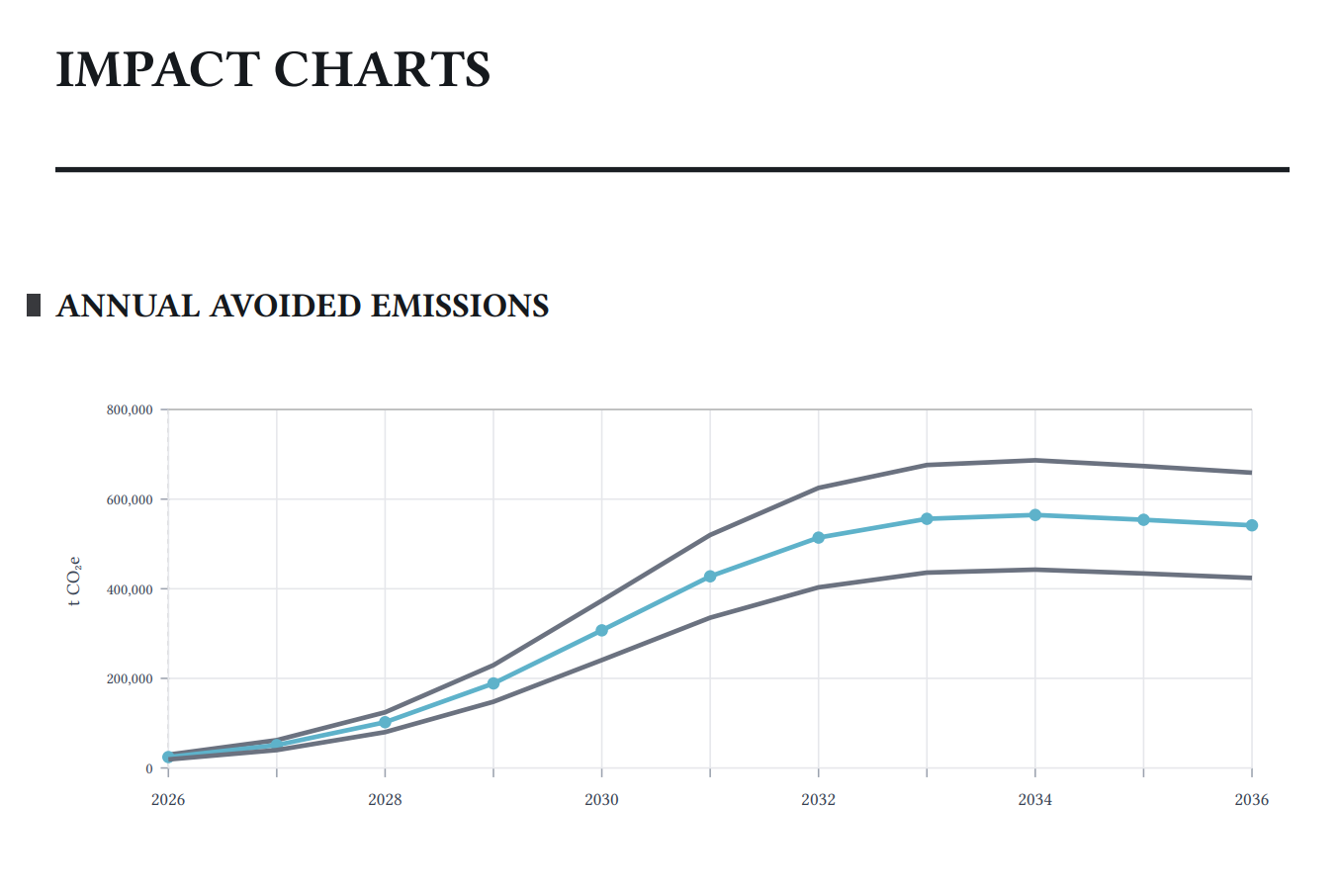
What's new

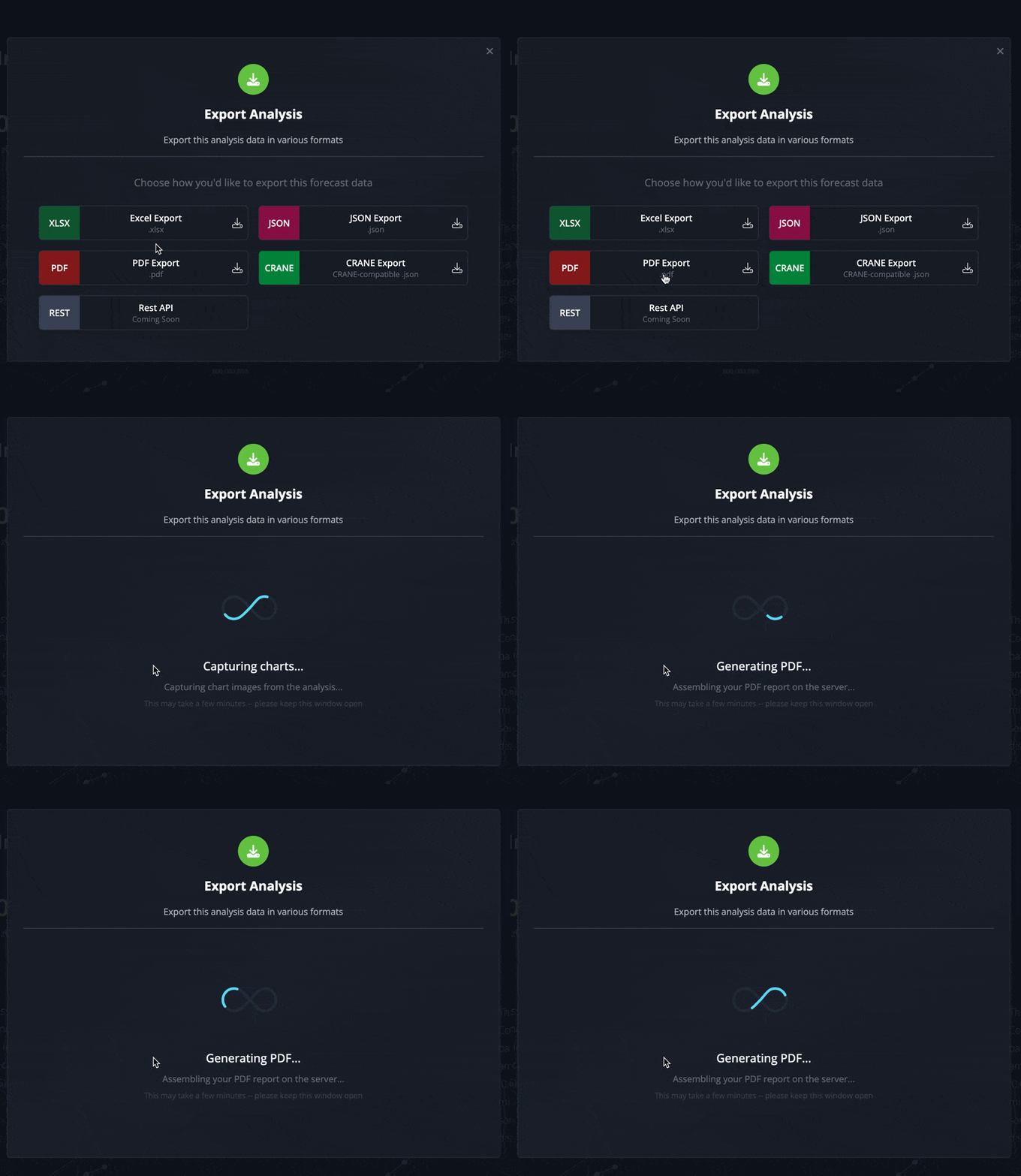
  • PDF joins the existing export options -- available alongside Excel and JSON from the same Export menu you already use.

  • Download a PDF of any technology model analysis -- a clean, formatted document you can share with anyone, no Koi account required.

  • Analysis charts included -- Annual Avoided Emissions, Cumulative Avoided Emissions, Unit Impact, and Solution Scale are captured and embedded alongside the model data.


Why is it important?

Until now, sharing an analysis externally meant exporting a spreadsheet or raw data file -- formats that require effort to interpret. The PDF export produces a ready-to-send document that presents your findings clearly, making it easy to include avoided emissions results in a report, deck, proposal, or due diligence package without any extra formatting work.


How Do I Use It?

  1. Open a technology model analysis.

  2. Click Export.

  3. Select PDF Export from the available options.

  4. Keep the window open while Koi prepares your document -- a progress indicator will let you know what's happening.

  5. The file downloads automatically when it's ready.

Who is this for?

  • Researchers and analysts sharing findings with partners, clients, or reviewers who don't use Koi.

  • Investment and sustainability teams including avoided emissions data in decks, memos, or proposals.

  • Procurement teams capturing a point-in-time record of a model's current state to share internally or with vendors in a portable format.


FAQ

  • Which charts are included? Annual Avoided Emissions, Cumulative Avoided Emissions, Unit Impact, and Solution Scale -- the same charts visible in the analysis view.

  • Do I need special access? The PDF option is available to anyone who can already export from a model. If a model is locked, it will need to be unlocked first -- the same requirement as other export formats.

  • How long does it take? It may take a few minutes. The progress indicator will update as it works -- just keep the window open until the download starts.
Versioned Edits: Track your model updates

What’s new?

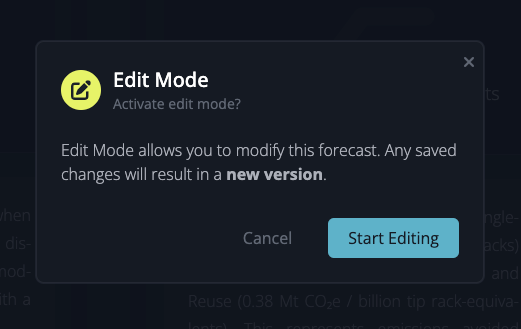
  • Edit Mode — we gave editing features a facelift for a cleaner UI and to prevent inadvertent changes.

  • Version History — edits to models result in a new version, so the history of changes is preserved and auditable.

Why is it important?

Versioned edits provide a complete, tamper-proof record of every change to your Koi models. You can trace how data inputs evolved over time, refer to older versions if a new version produces unexpected results, and demonstrate to regulators or stakeholders that your impact forecasts are accurate, reproducible, and rigorously governed.


How Do I Use It?

Edit Mode

To modify a private model, select Edit Mode from the Actions menu. A pencil icon or Edit button will appear next to editable components, which include:

  • Model name

  • Addition or removal of scenarios and markets

  • Details for baseline and solution scenarios

  • Value chain phases for baseline and solution

  • Addressable market details and values

  • Market capture parameters

  • References

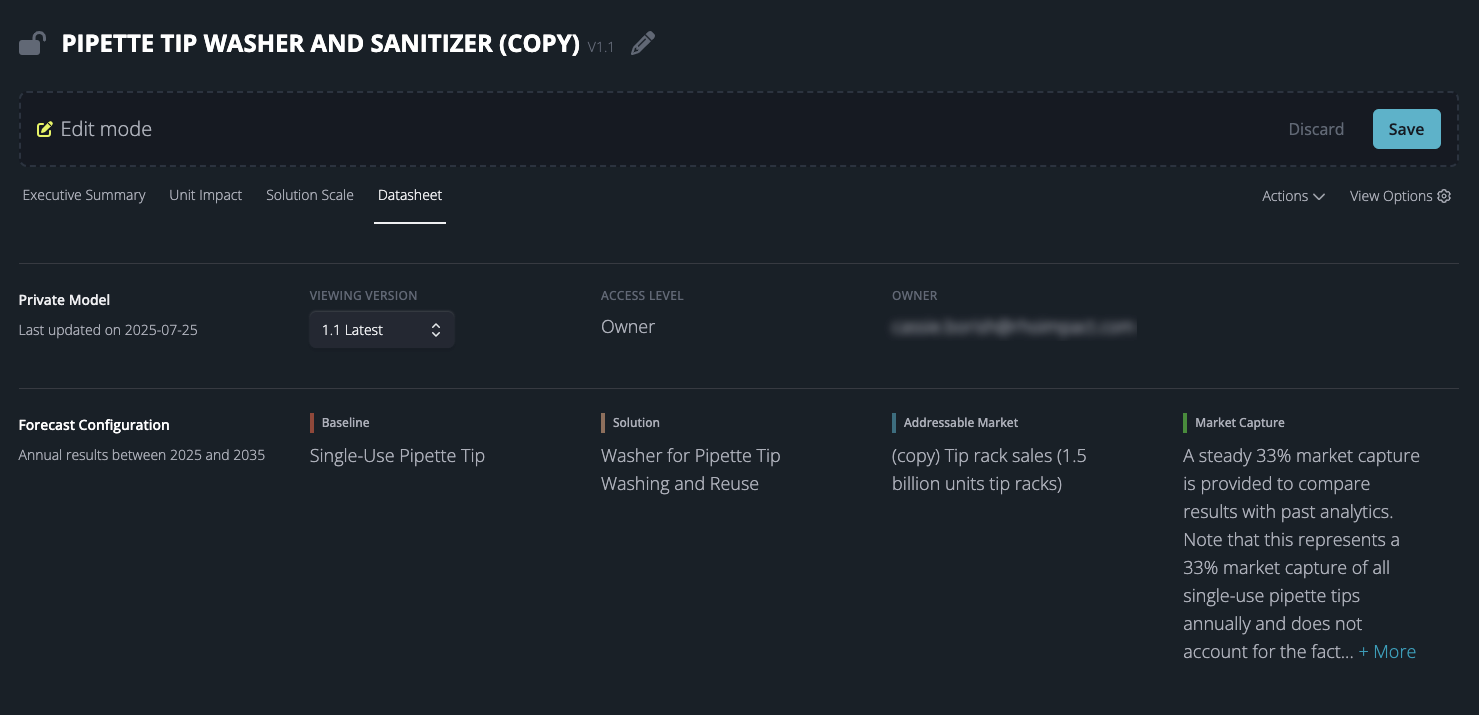
You can preview your edits in real-time. Once satisfied, click Save in the upper right corner. You will then be prompted to classify your changes as either Major or Minor to help maintain a clear version history of your model. Once saved, your modifications will be reflected in the model.


Who is this for?

  • Impact Analysts evaluating how changes to assumptions or data inputs affect avoided‐emissions forecasts

  • Compliance Teams needing a complete trail of edits for regulatory reporting

  • Stakeholders & Reviewers who want to see when and why key model parameters were adjusted


FAQ

  • How do I view earlier versions? 

To view earlier versions, go to a model's Datasheet and select the desired version under Viewing Version.

  • Who can view my changes? 

Once a new version is saved, anyone with access to the private model can see the updated version.

  • Is there a limit to how many versions are stored? 

No - make as many updates as you’d like, and retain all of the historical context.

Edit Custom Forecasts

What’s New?

You can now customize impact forecasts to represent your specific technology implementations. Modify the Koi-provided scenarios and markets or create your own and explore how your changes influence a technology’s impact potential.

Why Is It Important?

Customizing impact forecasts is important for several reasons:

  • Accuracy: By tailoring the forecasts to your specific technology implementations, scenarios, and markets, you can ensure that the results are more accurate and relevant to your organization.

  • Relevance: The ability to create your own scenarios and markets allows you to focus on the technologies and applications that are most important to you.

  • Flexibility: Customizing forecasts enables you to explore different possibilities and see how changes in your assumptions affect the potential impact of a technology.

  • Decision-Making: The insights gained from customized forecasts can help you make more informed decisions about which technologies to invest in and how to prioritize your resources.

How Do I Use It?

Start by clicking the ‘Customize Forecast’ button from any Climate Solution Detail page.

You will then be taken to your custom forecast, which will have a number of indicators that you’re able to edit it. You will see a pencil icon next to the title, which will allow you to edit the title and description of your forecast.

Selections for solution and baseline scenarios, serviceable available market, and serviceable obtainable market will display icons to edit or delete the available options. There is also a button to add new options.

You can add, drag and drop nodes for the solution and baseline scenarios as well as edit their values.

You can also hide Koi-provided references and add or edit your own references for the selected scenarios, available and obtainable markets.

Pro Tips

  • Any changes you make to Koi-provided data will be applied to a copy to preserve the integrity of the original data. However, changes you make to data created by you will be applied directly.

  • View and revisit your custom forecasts from your account library at https://app.koi.eco/forecasts.

  • If your data is represented with a different unit than what’s shown in the model, that’s ok! You can enter your data with the units you have, and they will be converted to the unit selected in the Analysis Options.

Frequently Asked Questions

  • What actions will apply edits to my data?

    • Selections made from dropdown menus (e.g. start and end years, units) will not apply edits to your data, but dragging and dropping nodes or editing/adding new values will.

  • Can I share my Custom Forecast with my team members or other organizations?

    • Sharing capabilities are under development and will be available soon!

  • Can I track changes to my Custom Forecast?

    • The ability to view a version history of your Custom Forecast is in our roadmap.

Earlier updates