
Changelog

Follow new updates and improvements to Koi.

Export Your Analysis as a PDF
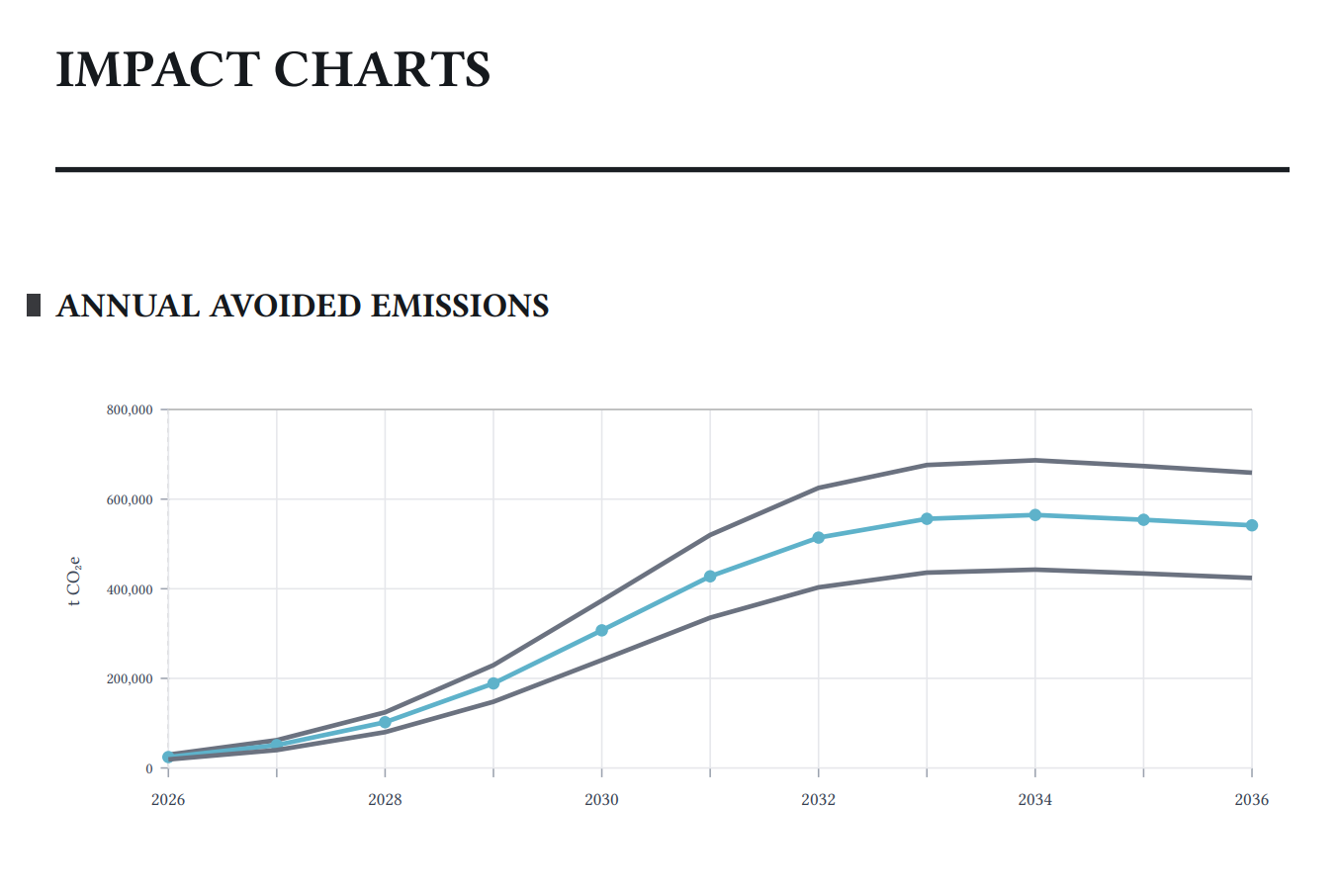
What's new

  • PDF joins the existing export options -- available alongside Excel and JSON from the same Export menu you already use.

  • Download a PDF of any technology model analysis -- a clean, formatted document you can share with anyone, no Koi account required.

  • Analysis charts included -- Annual Avoided Emissions, Cumulative Avoided Emissions, Unit Impact, and Solution Scale are captured and embedded alongside the model data.


Why is it important?

Until now, sharing an analysis externally meant exporting a spreadsheet or raw data file -- formats that require effort to interpret. The PDF export produces a ready-to-send document that presents your findings clearly, making it easy to include avoided emissions results in a report, deck, proposal, or due diligence package without any extra formatting work.


How Do I Use It?

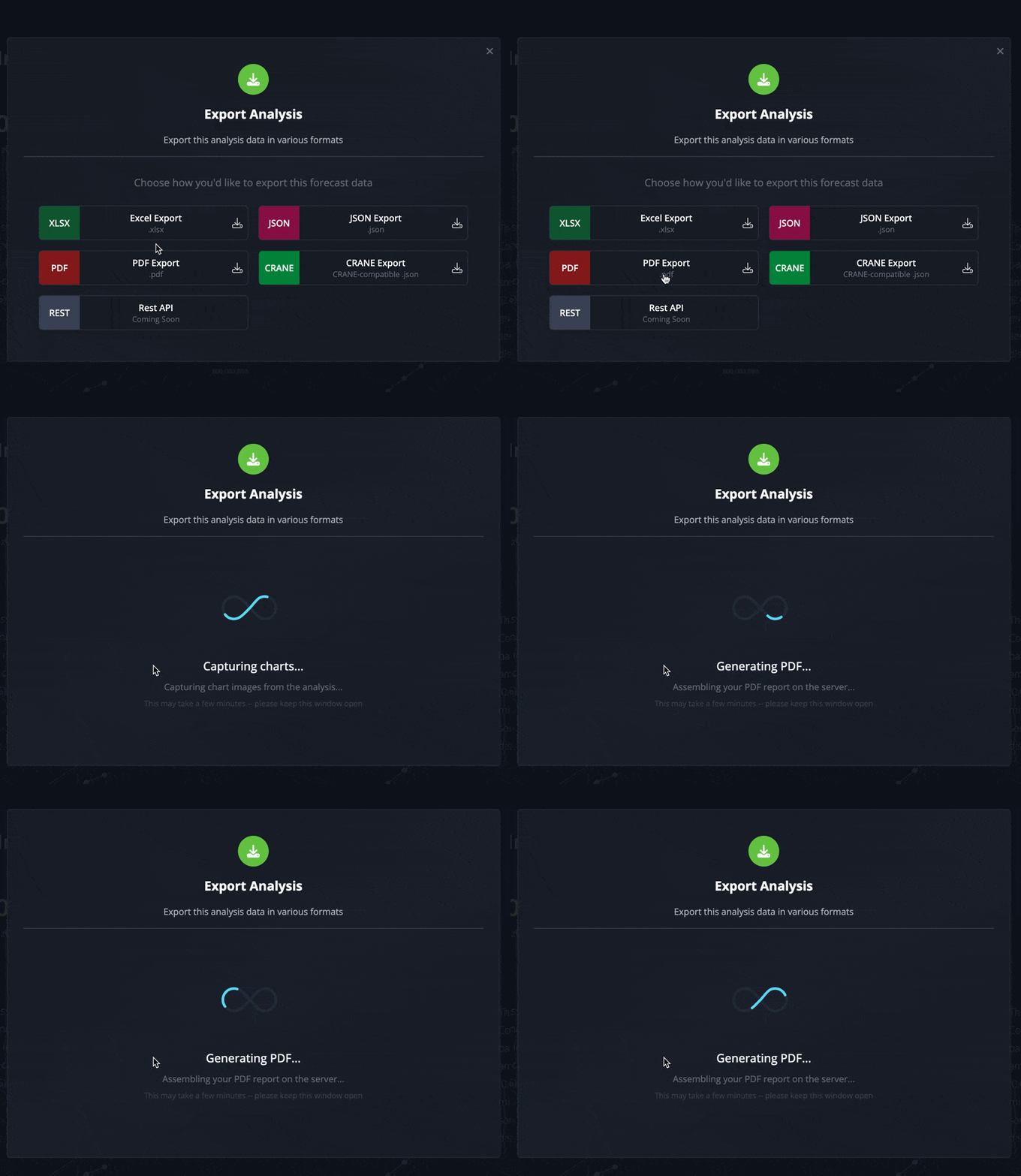
  1. Open a technology model analysis.

  2. Click Export.

  3. Select PDF Export from the available options.

  4. Keep the window open while Koi prepares your document -- a progress indicator will let you know what's happening.

  5. The file downloads automatically when it's ready.

Who is this for?

  • Researchers and analysts sharing findings with partners, clients, or reviewers who don't use Koi.

  • Investment and sustainability teams including avoided emissions data in decks, memos, or proposals.

  • Procurement teams capturing a point-in-time record of a model's current state to share internally or with vendors in a portable format.


FAQ

  • Which charts are included? Annual Avoided Emissions, Cumulative Avoided Emissions, Unit Impact, and Solution Scale -- the same charts visible in the analysis view.

  • Do I need special access? The PDF option is available to anyone who can already export from a model. If a model is locked, it will need to be unlocked first -- the same requirement as other export formats.

  • How long does it take? It may take a few minutes. The progress indicator will update as it works -- just keep the window open until the download starts.
Versioned Edits: Track your model updates

What’s new?

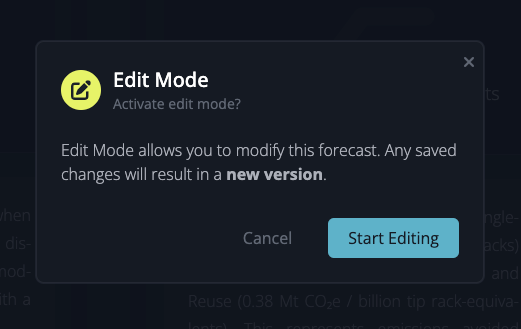
  • Edit Mode — we gave editing features a facelift for a cleaner UI and to prevent inadvertent changes.

  • Version History — edits to models result in a new version, so the history of changes is preserved and auditable.

Why is it important?

Versioned edits provide a complete, tamper-proof record of every change to your Koi models. You can trace how data inputs evolved over time, refer to older versions if a new version produces unexpected results, and demonstrate to regulators or stakeholders that your impact forecasts are accurate, reproducible, and rigorously governed.


How Do I Use It?

Edit Mode

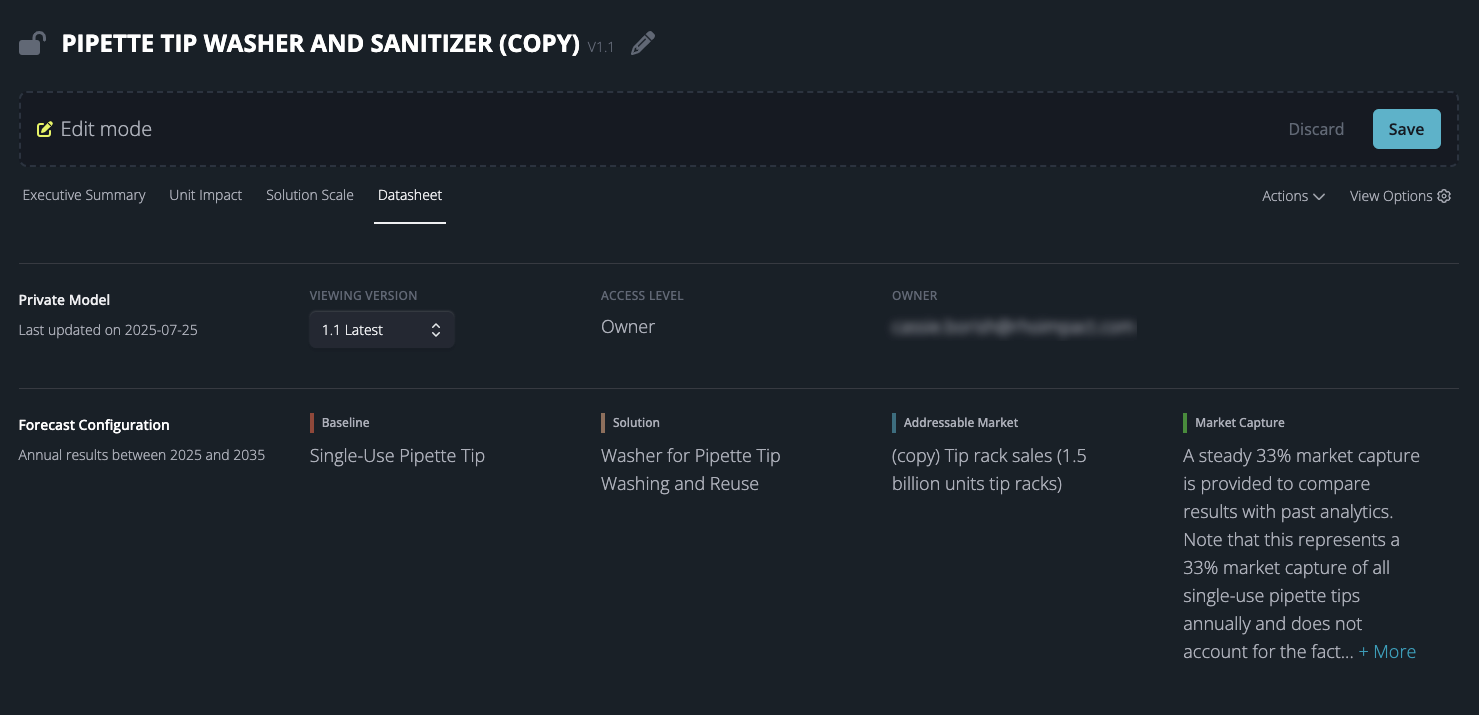
To modify a private model, select Edit Mode from the Actions menu. A pencil icon or Edit button will appear next to editable components, which include:

  • Model name

  • Addition or removal of scenarios and markets

  • Details for baseline and solution scenarios

  • Value chain phases for baseline and solution

  • Addressable market details and values

  • Market capture parameters

  • References

You can preview your edits in real-time. Once satisfied, click Save in the upper right corner. You will then be prompted to classify your changes as either Major or Minor to help maintain a clear version history of your model. Once saved, your modifications will be reflected in the model.


Who is this for?

  • Impact Analysts evaluating how changes to assumptions or data inputs affect avoided‐emissions forecasts

  • Compliance Teams needing a complete trail of edits for regulatory reporting

  • Stakeholders & Reviewers who want to see when and why key model parameters were adjusted


FAQ

  • How do I view earlier versions? 

To view earlier versions, go to a model's Datasheet and select the desired version under Viewing Version.

  • Who can view my changes? 

Once a new version is saved, anyone with access to the private model can see the updated version.

  • Is there a limit to how many versions are stored? 

No - make as many updates as you’d like, and retain all of the historical context.

Koi Studio

What’s New?

Koi Studio is here! We have revamped the ways in which you access the tools and data inside Koi.

Why is it Important?

Koi has evolved to become a comprehensive modeling and collaboration suite and it was time to refresh the product interface to more adequately support core workflows. The new Koi Studio layout provides more rapid access to the key tools and features within Koi and is the beginning of a series of features we’re rolling out focused on collaboration and sharing across startups, investors, and asset owners.

How Do I Use it?

Easy! Just log in!

Pro Tip

Please give us feedback! We greatly appreciate any and all feedback, bug reports, feature requests, and more. Send us an email to feedback@koi.eco or submit directly at https://product.koi.eco

Earlier updates